ForMotiv Forensics

Find the session. Follow the timeline. Understand the behavior.

Forensics gives SIU teams, fraud investigators, underwriters and compliance teams a direct path from an identifier to a behavioral record. Search by session ID, quote number or policy ID, then open a Session Timeline that shows what happened, in order.

Faster triageGo from a policy or quote number to the relevant session in one search.

Less manual reconstructionThe full session and its signals in one sequence.

Clearer case narrativesBehavioral context that supports the investigator’s judgment.

Illustrative · synthetic data

Sample investigation

Search an identifier. Open the timeline.

A working recreation of the Forensics workflow with a small synthetic dataset. Pick a sample identifier or type one, open the result, then filter, expand and move between days.

1 · SearchSession ID, quote number or policy ID.

2 · OpenThe result links straight to its Session Timeline.

3 · ExploreFilter events, expand screens, select a moment.

ForMotiv Recreated demo UI
Try
Illustrative. Synthetic identifiers, times and events. Not product data and not a screenshot.Field values are never shown. Why?

Behavioral context

What the timeline lets an investigator see.

Most claim files hold what a claimant submitted. The Session Timeline adds the history behind the claim: how the policy was applied for, what happened in the policy portal, and when and how the claim was filed.

01A high-risk application

The application is submitted from a high-risk device, with a high-risk behavioral pattern in how it was completed. The policy binds, and that session becomes the first entry in the record.

02Abnormal policy portal activity

The user logs in to the policy portal and exhibits high-risk, abnormal behaviors that don’t match how a genuine policyholder moves through it. The login joins the same record as the application.

03A claim timed to avoid review

The user waits 60 days, outside the early-claim window, then files a claim just below the known review threshold. On its own, the claim looks routine.

04Behavioral signals, read together

Each signal sits on the session and screen where it fired, so the investigator sees the application, the portal activity and the claim as one story before the claim is paid.

Context for investigators, not a verdict.

A single signal does not establish fraud, and the timeline does not decide a case. It gives the people reviewing a session a clear, ordered account of behavior to weigh alongside everything else they know.

In the ForMotiv Console

Search from anywhere in your workflow.

Global Search sits in the Console header, so a reviewer can pull up a session from whatever page they are on. From a result, or from the Screen Flow widget’s View Session Timeline button, the full timeline opens.

Product screenshot: the ForMotiv Console header with the Global Search field
Product screenshot. Global Search in the Console header.
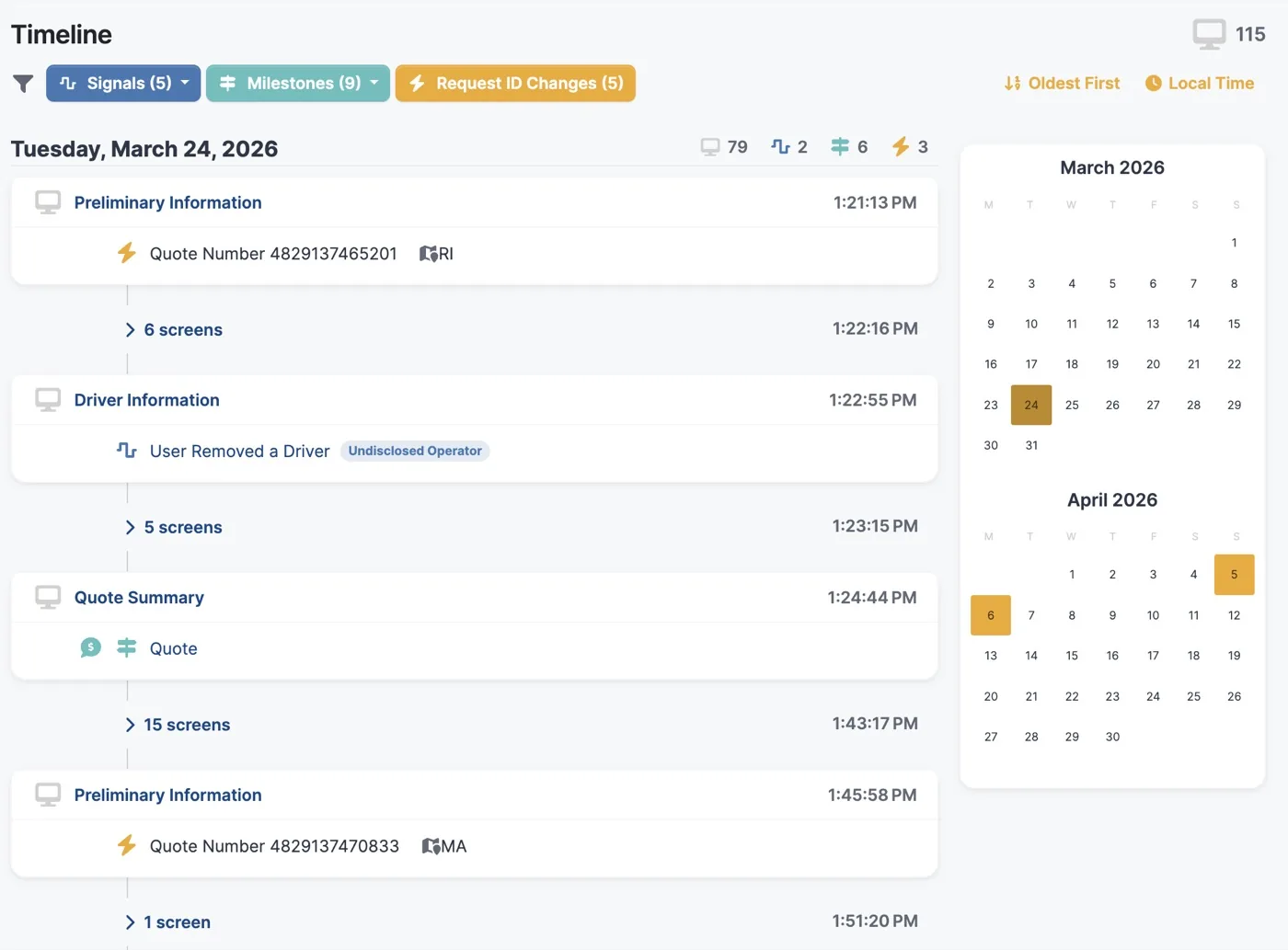
Product screenshot: a Session Timeline for Tuesday, March 24, 2026, with Signals, Milestones and Request ID Changes filters, screens such as Preliminary Information, Driver Information and Quote Summary, a signal reading User Removed a Driver tagged Undisclosed Operator, and a calendar for March and April 2026 Product screenshot
Product screenshot. A Session Timeline in the ForMotiv Console. Identifiers shown belong to the screenshot, not to the sample investigation above.

Who uses it

Every team investigating a policy works from the same behavioral record

SIU, compliance and underwriting each arrive with a different question. Forensics gives all of them the same continuously analyzed record, so the answer is already waiting for them.

TeamStarts withFollows in the timelineComes away with

SIU & fraudSpecial investigation units and fraud analysts

Starts with A claim or policy that needs a closer look, found by policy ID, claim number or session.
Follows in the timeline High-risk behavior across every session on the policy, from login and servicing through the claim itself.
Comes away with Evidence that supports triage and a clean case narrative, without rebuilding anything from logs.

ComplianceCompliance and special inquiries

Starts with A lookback, inquiry or dispute that needs to establish what happened in a digital session.
Follows in the timeline The full session in order, from the first screen to confirmation.
Comes away with A clear behavioral record to review alongside policy and application records.

UnderwritingUnderwriters and underwriting operations

Starts with An application that raises a question.
Follows in the timeline Suspicious and high-risk behavior on the answers that matter most, in the context of the whole record.
Comes away with Context on how answers were reached, to inform the next underwriting step.

Two moments, one foundation

Signals act in the moment. Forensics explains it later.

The behavioral intelligence that powers real-time signals is the same foundation investigators search. When a question comes up after a policy is written, the activity that produced the signal can be read in order.

During the session

Real-time signals

As someone moves through a quote or application, ForMotiv’s rule-based engine can surface signals that your team uses to intervene in selected sessions.

  • Signals catalog ForMotiv configures
  • Uses your current fraud actions
  • Applied while the session is live
See how signals are configured
When questions come up

Retrospective investigation

An investigator searches by the identifier they have, opens the Session Timeline and reviews where the earliest signals appeared.

  • Search by session, quote or policy
  • The full behavioral record behind every session
  • Signals in the context they fired
Try the sample investigation

Questions

Forensics, answered.

What investigators and their managers usually ask first.

What can I search by?

Session IDs, quote numbers and policy IDs. Search returns the matching session and its associated context, and each result links to its Session Timeline.

Where is search available?

Global Search is part of the ForMotiv Console and sits in the Console header, so you can search from wherever you are in your workflow rather than navigating to a separate tool.

How do I open a Session Timeline?

Open it from a search result, or use the View Session Timeline button in the Screen Flow widget for any session you are already looking at.

What does the timeline show?

Every screen and milestone in sequence, with the behavioral signals that fired and the reasons behind them, across every session tied to the policy. Filters let you focus on signals, milestones or request ID changes.

Will I see what the applicant typed?

No. ForMotiv does not capture or store sensitive entered application field values such as names and addresses. The timeline shows the behavior behind each answer, never the answer itself. Read how the privacy boundary works.

Does a signal mean a session is fraudulent?

No. A signal is behavioral context for a person to assess. Decisions about a case remain with your investigators and follow your own processes.

How does Forensics relate to real-time signals?

They share the same behavioral foundation. Real-time signals support intervention while a session is live; Forensics lets teams look back at that activity in sequence. See how the rule-based engine works.

See it on your sessions

Bring a case. We’ll walk the timeline with you.

See Global Search and the Session Timeline in the ForMotiv Console, and talk through how your SIU, compliance and underwriting teams would use them.

01
Pick a workflow

SIU referral, compliance lookback or underwriting review.

02
Search and open a timeline

A live walkthrough of search, filters and the Session Timeline.

03
Plan the rollout

Who on your team uses it, and the journeys that matter most.